


Otter is a free speech to text app, which converts vocal recordings into text. You can add members to the recording, or share it with them afterwards.
Otter is a useful note-taking app for time-sensitive occasions, such as business meetings, interviews, or just personal thoughts whilst you’re busy multi-tasking. You can also just use it as a quicker method of taking down notes.
Otter app review
Overall, Otter AI is a strong option if you need to transcribe audio and video files a short amount of time. You can use Otter with pre-recorded Zoom videos or import audio files into the Otter app easily, making it one of the best transcription softwares currently available.
Whilst Otter seems to be a useful tool for note-taking, it does have its limitations and drawbacks. We’ll be going through both pros and cons of the app in this review.
Free To Use
Otter is free to download and use. There are various features that are available to free users, such as the note-taking and note-editing features.


However, there are still some features that are locked for free users. Such features include connecting to cloud storage, and showing speaker talk times.
They require a subscription to access. This makes it difficult to full test the app out before deciding to purchase the pro version.


There are also quite severe limitations on certain features for free users. For example, there’s a limit to the amount of imports you can do.

However, some features have limitations regardless of whether you have a subscription. For instance, there’s a limit to the amount of total minutes you can record for.
The amount of minutes differ depending on whether you’re using the pro version or the free version. Subscribing to the pro version gives you more minutes per month.
Free users only get 600 minutes per month. The app tells you how many minutes you have left in the month, and when they reset, on the home page.

It‘s easy to access information about the subscription on the app. There are several instances where the app links to the subscription page.
Clicking on the links don’t take you out of the app either. This makes it convenient to access.

The subscription page gives you the details about what upgrading to pro can give you, as well as the prices. There are two options to choose from. You can either pay monthly, or pay yearly.
The yearly option offers a discount in price. However, it does require a greater level of commitment. Paying yearly means that you must pay a larger sum up-front, and you won’t get that money back if you happen to change your mind before the year is over.
It’s good that they offer a discount for long term users, but it’s still a daunting commitment to new users.
Paying monthly is less of a commitment as it means that, if you change your mind and wish to cancel the subscription, you can cancel near the end of the month and not have to pay the next month’s fee.
You won’t be wasting a lot of money as you’ll be paying in much smaller sums.
The subscription page claims that you can manage your subscriptions from within the app, which is reassuring to know. This means that cancelling a subscription should be easy to do.

There are a few pop ups that appear as you use the app, which all prompt you to upgrade to the pro version. This can make the user experience quite disruptive. Luckily, the pop-ups can be easily closed.


The Learning Curve
The app has quite a shallow learning curve, which makes things easy if you’re new to using transcription services.
The UI is very simple, and easy to learn and understand. There are few settings, and most options are simply named.

The user interface layout is also quite minimalistic, which makes it easy to navigate.
The app offers three basic tutorials. They’re short and simple, so they’re easy to complete.


However, they’re not very comprehensive. For example, none of them go over the highlight feature and how it works. Each of them only cover one or two features.
AI Quality
The AI is quick at converting voice recordings to text. It accounts for pauses in the recording, and adds commas or full-stops according to the length of the pause.
It also starts a new line if the pause is long enough. This makes the formatting of your notes much neater and easier to comprehend, as it accounts for punctuation.

However, it can get the punctuation and spacing wrong. If the pause is not long enough, it won’t separate pieces of text. It doesn’t seem to account for differences between people’s voices either. This means that, even if two people speak, their speeches may end up as part of one paragraph.
The app can also inaccurately document the words themselves. Thus, you must be careful in how you speak. This can be unfortunate as this app should allow you to multi-task whilst making notes. This means your main focus won’t be your notes, or how clear your voice is.
You can’t always monitor your notes to ensure that it’s recognising your words well. It may also get certain parts so wrong, that it’s difficult to remember what the correct documentation should’ve been.
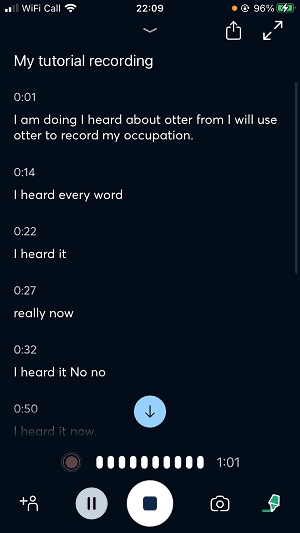

Fortunately, the app also records and saves the audio recording. You can play it back to see what parts the AI got wrong.

The app also lets you edit the notes afterwards, in case you wish to fix any inaccuracies.

Furthermore, whilst the app can struggle to accurately document vocal recordings, it does modify its notes during the process.


Additionally, you can help the AI learn unique words or phrases that often appear in your conversations.
The app has a vocabulary feature, where you can add unique words. This will make the AI aware of these words, and more likely to recognise them in the future.


However, there’s no option for teaching the AI how the words sound. It can only assume how they sound based on their spelling.
This means that it’s not guaranteed that the AI will recognise the words in the future.


Limited Editing Features
The app offers a few editing features in regards to your conversation notes. For example, you can highlight parts of your notes during the recording process.

However, you can only highlight the last two sentences when you press the highlight icon.
Fortunately, you can also highlight notes by manually selecting parts, and pressing either the highlight option or the highlight icon.