


Have you ever tried posting on X (formerly Twitter) and noticed the character counter change from blue to red?
That’s called visual feedback, and I love how small UI details like this can completely change the writing experience.
I spend a lot of time writing, and I’ve learned that giving users feedback while they type prevents frustration. Nobody likes getting a word or character limit error only after hitting “Submit,” right?
In this guide, I’ll show you how to add word and character counters that change color as users get close to the limit.
I’ll use Froala Editor since it’s super easy to set up, but you can apply the same idea to any text editor you prefer.
Key Takeaways
- Show feedback while typing to help users avoid mistakes.
- Use color changes to guide users naturally.
- Count characters for strict limits, it’s more accurate than counting words.
- Event-driven updates (update in real time) as users type, so they always see their progress.
- You can create custom UI elements using Froala’s API.
Note: Small UI details like these are called microinteractions. They make the experience smoother and help users feel more comfortable and in control.
If you want to learn more, check out Nielsen Norman Group’s guide on microinteractions.
What We Are Building
Before we get into the code, let’s see what we’re building:
- Counter display: Shows how many characters are used and the maximum allowed.
- Color feedback: Changes color as you get closer to the limit.
- Real-time updates: Counts and updates while you type using Froala’s events.
- Hard limit enforcement: Prevents users from exceeding the limit.
Now, let’s get started and build this!

Setting Up Froala Editor
First, let’s set up our basic Froala editor.
| <!DOCTYPE html> <html> <head> <title>Froala Editor</title> <!– Froala CSS –> <link href=”<https://cdn.jsdelivr.net/npm/froala-editor@latest/css/froala_editor.pkgd.min.css>” rel=”stylesheet” /> </head> <body> <div id=”editor”></div> <!– Froala JS –> <script> |
What this code does:
- Loads Froala Editor CSS from a CDN to style the editor.
- Creates a container (<div id=”editor”></div>) where the editor will appear.
- Loads Froala Editor JavaScript from a CDN to enable editor features.
- Initialises the Froala Editor inside the container.
- Sets a minimum height of 200 pixels for the editor.
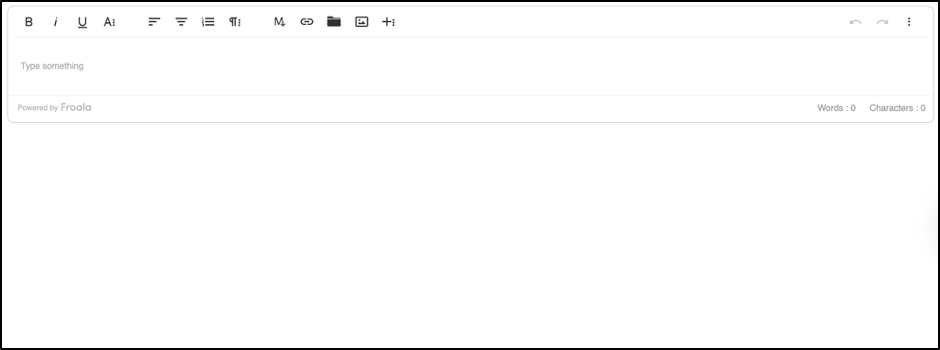
- When opened in a browser, you’ll see a basic Froala rich text editor.
If you’re new to CDNs, here’s a good MDN explanation of how CDNs work.
Froala’s Built-In Character Counter
Froala has a built-in charCounter plugin that counts characters for you. Here’s the easiest way to use it:
| <script> const editor = new FroalaEditor(“#editor”, { // Enable character counter plugin pluginsEnabled: [“charCounter”], // Enable character counter charCounterCount: true, // Set maximum characters // Event that fires when the counter updates |
What this code does:
- pluginsEnabled: [“charCounter”]enables the character counter plugin to track typed characters.
- charCounterCount: true displays a live character count.
- charCounterMax sets a maximum limit of 140 characters.
- update event fires whenever the character count changes:
- Inside the event, this refers to the Froala editor instance.
- log(this) outputs the editor instance to the console.
- Users see a live, updating character counter as they type.
- You can add custom behaviour by using the update event.
Adding Color-Coded Feedback
Now let’s create visual feedback that changes color as users approach the limit. We’ll use Froala’s API to get character counts and its event system to update our UI.
You can get the GitHub complete code from the resources.
Step 1: Set Up the HTML Structure
| <!– Froala editor container –> <div id=”editor”></div> <!– Custom character counter –> <div id=”counter” class=”custom-counter counter-safe”></div> |
Here,
- #editor is where the Froala editor will appear.
- #counter is a separate div for showing the character count with color-coded feedback.
Step 2: Include Froala Editor
| <link href=”<https://cdn.jsdelivr.net/npm/froala-editor@latest/css/froala_editor.pkgd.min.css>” rel=”stylesheet” /> <script src=”<https://cdn.jsdelivr.net/npm/froala-editor@latest/js/froala_editor.pkgd.min.js>”></script> |
- Loads Froala’s CSS for styling the editor.
- Loads Froala’s JavaScript to enable editor functionality.
Step 3: Add CSS for the Custom Counter
| .custom-counter { margin-top: 10px; padding: 15px; border-radius: 8px; text-align: right; font-weight: bold; font-size: 16px; transition: all 0.3s ease; } .counter-safe { background-color: #d4edda; color: #155724; border: 2px solid #c3e6cb; } .counter-warning { background-color: #fff3cd; color: #856404; border: 2px solid #ffeaa7; } .counter-danger { background-color: #f8d7da; color: #721c24; border: 2px solid #f5c6cb; } |
Step 4: Initialise Froala Editor
| const maxChars = 140;
const editor = new FroalaEditor(“#editor”, { |
What this code does:
- Creates a new Froala editor in #editor.
- Listens to two events:
- initialized: runs once when the editor is ready.
- contentChanged: runs whenever the user types or modifies content.
- Both events call updateCustomCounter() to update the custom counter.
Step 5: Update the Custom Counter
| function updateCustomCounter(editorInstance) { // Get plain text length (ignoring HTML tags) const text = editorInstance.html.get(); const tempDiv = document.createElement(“div”); // Update counter text // Remove old color classes // Add appropriate color class } |
What this code does:
- Count only the text the user types (ignores any formatting or HTML).
- Update the counter number and change its color based on how close the user is to the limit (green → yellow → red).
- Show a warning (”LIMIT REACHED!”) when the user reaches the maximum number of characters.
As you can see, this approach makes it really easy to create your own custom UI on top of Froala’s built-in character counting.
Word Counter
Some platforms need word counts instead of character counts (for example, blogs that require a minimum number of words).
With Froala, you can easily add a live word counter to your editor.
What this does:
- Counts the number of words as the user types.
- Updates the counter in real time.
- Changes the counter’s color based on how close the user is to the maximum word limit (green → yellow → red).
- Shows a “LIMIT REACHED!” message if the user hits the maximum number of words.
Preventing Extra Characters
If you want to prevent users from typing more than a certain number of characters, Froala can do this easily with the charCounterMax option.
Once the limit is reached, Froala automatically prevents further input, and it works with paste operations too.
| <script> const editor = new FroalaEditor(“#editor”, { // Enable character counter plugin pluginsEnabled: [“charCounter”], // Enable character counter // Hard limit – users can’t exceed this events: { |

Best Practices for Character/Word Counter
You can follow the following tips to make your counter work well, be easy to use, and look nice.
- Use Froala’s built-in counter: Start with charCounterCount: true, it handles edge cases and HTML parsing automatically.
- Set charCounterMax: This stops users from typing more than the limit.
- Provide early warnings: Show a yellow warning at 70–80% of the limit so users can adjust before reaching the max.
- Test with different content: Try bold text, links, images, and other formatting to make sure the counter works correctly. You can test your editor’s HTML parsing easily using the HTML Sanitizer API on MDN.
- Use smooth transitions: Add CSS transitions so the counter’s color changes look smooth and nice.
Common Pitfalls for Character/Word Counter
Avoid the following mistakes to prevent inaccurate counting or a frustrating user experience.
- Forgetting initialisation: Always update your counter when the editor starts (initialized), not just when content changes.
- Inconsistent counting: Make sure the number the user sees matches what your backend expects. Both should count the same way.
- No hard limit: If you show a limit, enforce it with charCounterMax so users can’t type beyond it.
- Ignoring paste events: Froala handles pasted text automatically, but make sure your counter updates correctly when users paste large blocks.
Conclusion
Adding live word or character counters with visual feedback is a small touch that makes a big difference. Users instantly know how much they can type, avoiding frustration and improving the overall writing experience.
With Froala’s editor and a few lines of code, you can create counters that update in real time, change color as users approach limits, and even enforce hard limits when needed.
Beyond the basics, you can fully customise the counter’s style, behaviour, and integration to match your platform’s design and workflow.
This approach works for blogs, social media apps, or any platform with content length limits. Combining a live counter with thoughtful UI feedback makes your interface intuitive, polished, and user-friendly.
About the Author
Shefali Jangid is a web developer, technical writer, and content creator passionate about building intuitive developer tools and educational resources. She shares tutorials, code snippets, and practical tips on her blog, shefali.dev, helping developers create better web experiences with clean, efficient, and accessible code.
Resources for Further Reading
- Nielsen Norman Group’s Guide on Microinteractions
- Froala’s Events
- MDN Explanation of How CDNs Work
- Froala’s charCounter Plugin
- GitHub Repo for the Complete Code
- HTML Sanitizer API on MDN

