


Losing files from an Android SD card can feel sudden and stressful. Corruption, formatting mistakes, and unsafe removal often hide photos, videos, and documents. In some cases, deleted data remains stored until new files overwrite it. That is why SD card recovey should start carefully, before saving anything.
This guide explains the “SD card format recovery for Android phones” clearly. You will learn what works for corrupted cards and formatted cards first. We also cover limits, warning signs, and safer habits after recovery attempts. So, use trusted tools, and always protect the card during scanning.
Part 1. Understanding How to Restore Data from an SD Card on Android
Part 2. Restore Data from SD Card Android: 3 Fixes and Recovery Methods
Part 3. Tips and Precautions After Restoring Data from an SD Card on Android
Conclusion
Part 1. Understanding How to Restore Data from an SD Card on Android
SD card recovery on Android restores lost files from damaged storage. People search for “SD card is corrupted, Android” when phones stop reading. Recovery tools scan hidden data that still remains after errors occur. Thus, fast action improves results because new saves can replace old sectors. Plus, safe recovery also avoids deeper damage caused by repeated failed attempts.
Common Reasons For Corruption
Before trying fixes, understand what usually causes SD cards to fail. The following causes appear most often during everyday Android use sessions:
- Unsafe Removal: Removing the card during use can break files and folder indexes quickly. Android may then show errors because write tasks stopped halfway without warning.
- Sudden Power: A sudden shutdown can interrupt saving and leave file tables incomplete afterward. This often happens when batteries die during camera recording sessions on phones.
- Bad Sectors: Aging memory cells wear out and create unreadable spots over time naturally. Those damaged areas can corrupt files saved near failing sections inside cards.
- Interrupted Transfer: Stopping file transfers early can leave copied data broken or missing later. Disconnections, app crashes, or restarts commonly trigger this corruption on Android devices.
- File System: Wrong formatting settings can create structures that Android reads poorly later on startup. Cards moved between devices may develop conflicts in partition metadata over time.
Part 2. Restore Data from SD Card Android: 3 Fixes and Recovery Methods
Now that you understand the common causes, the next step is choosing the right solution. Below are the safe repair options and recovery steps that match different card problems:
Fix 1: Use Trusted Memory Card Recovery Software
When an SD card suddenly shows errors on your phone, panic starts fast. Imagine you open your gallery after a trip, but your photos are missing, and the card asks for formatting. In that moment, using trusted memory card recovery software is the safest first move, as quick action can protect recoverable files on the storage device.
Therefore, Recoverit V14 is a trusted memory card recovery software option for this problem. It can scan deleted files, recover formatted SD cards, preview results before saving, and support many photo, video, and document formats. The simple workflow helps beginners restore data carefully, while deep scanning improves recovery chances from corrupted or unreadable card sectors during stressful Android failures and errors.
Key Features
- Deep Scan Mode: Performs deeper sector-level scanning to improve recovery from severe data loss.
- Corrupted Card Recovery: Scans unreadable or damaged SD cards and finds recoverable files safely.
- Multiple SD Card Compatibility: Works with microSD, SDHC, SDXC, and memory cards used in Android devices
Guide to Restore Data from an SD Card on Android with Recoverit
Let’s walk through the steps below to restore data from the SD card on Android with Recoverit:
Step 1. Access Recoverit SD Card Recovery in Recoverit
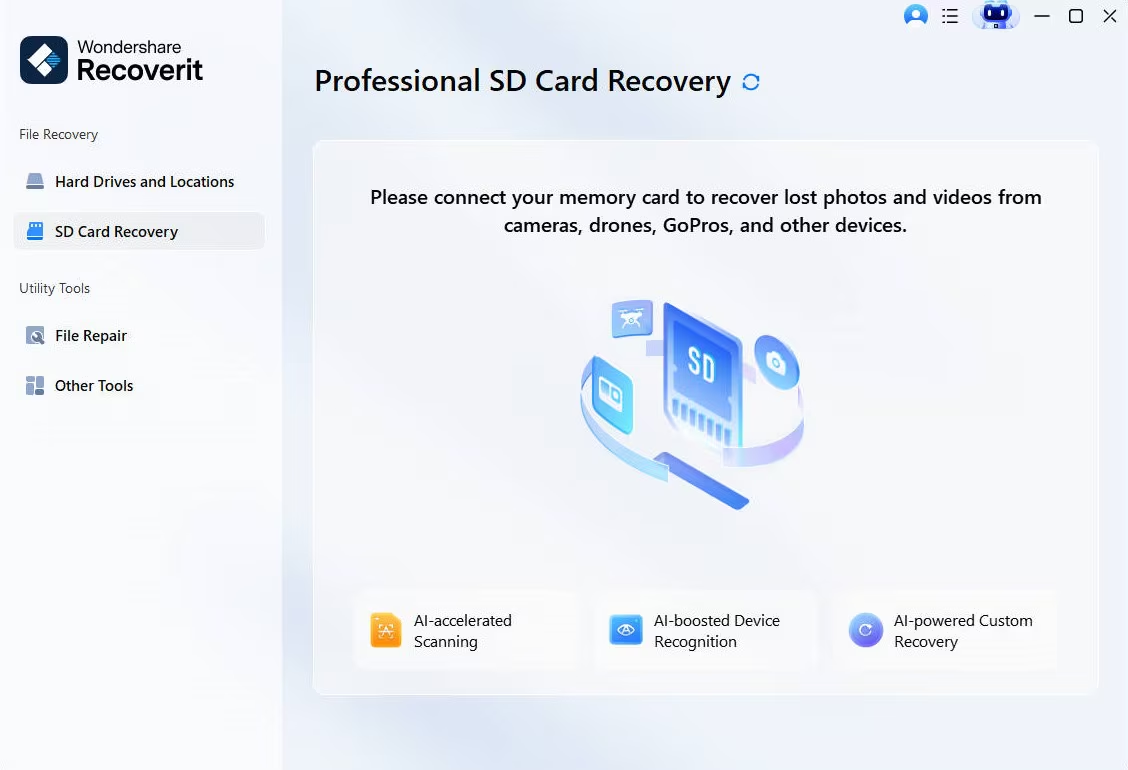
To start, launch Recoverit and navigate to “SD Card Recovery” from the left-side navigation panel. Next, connect the “SD card” to the computer using a card reader and wait until the device is recognized.
Step 2. Scan And Inspect Found Files
Afterwards, allow Recoverit to run “Quick Scan” first, then continue Deep Scanning automatically. During scanning, review the discovered folders and files and press the “Recover” button to start scanning.

Step 3. Save Recovered Files Safely
After choosing the target files, in the “Select Path to save files” dialog box, choose a destination on a different drive and hit “Recover” to complete file export.

User Reviews
- “I had an SD Card corrupt in my DJI Drone. I needed the footage for a client’s job, so I tried every FREE recovery software available. None of the free versions allowed me to recover the files, however ONLY Recoverit was able to locate and preview the lost footage. I bit the bullet and bought the 1-week version and it recovered every shot perfectly. Literally saved my life!!!..”- Simon K.
- “This software saved my life. A NAS with syncing enabled erased all my files on AWS S3. I was able to recover 99.9 percent of the files using this software. It is very easy to use. Highly recommended!”– Matts H.
Fix 2: Recover from Trash / Recently Deleted
This fix works when deleted files still remain in Trash or Recently Deleted folders. Many Android gallery, file manager, and cloud apps keep removed items for a limited number of days before permanent deletion. It is the fastest, safest option, even when users search “SD card is corrupted Android” after sudden file loss. Check these folders first, then follow the steps below for quick restoration:
Step 1. Start by accessing the “Gallery” or “Google Photos,” then look for the “Trash” option in the menu.
Step 2. After that, browse photos, videos, or documents and select the files you need. Preview items carefully before restoring the wrong files by mistake.
Step 3. Lastly, tap on the “Restore” or “Recover” button to return files to their original folders.
Fix 3: Recover via the File Manager’s Trash
To apply this fix, check your phone’s File Manager first, because many Android devices keep deleted files in Trash for a limited time. This quick option can restore missing items safely before deeper SD card format recovery Android phone methods become necessary after accidental deletion or folder cleanup mistakes. Review the Trash folder first, then follow the stepwise guide below for safe restoration:
Step 1. First, navigate to the phone’s built-in “File Manager” or “My Files” app to continue.
Step 2. After that, open the menu and look for “Trash” or “Recently Deleted” options to check the lost photos or videos.
Step 3. In the end, pick the “Restore” or “Recover” option to bring back the files to their original folders.
Part 3. Tips and Precautions After Restoring Data from an SD Card on Android
After recovery, the next step is protecting your files and preventing another loss. The tips below help you keep the SD card stable, safe, and ready for daily Android use:
- Make Backups: Create a backup copy immediately after recovery to protect restored files safely. Save another copy on cloud storage or a computer for emergencies later.
- Stop Writing: Avoid saving new files on the same card until checks finish completely. New data can overwrite hidden recoverable sectors and reduce the chances of success quickly.
- Check Errors: Run a card error check after recovery to find file system problems. Fixing small issues early helps prevent future corruption and repeated data loss.
- Safe Removal: Always unmount the SD card before removal from phones or computers properly. Safe removal prevents interrupted writes that damage folders, indexes, and media files.
- Use Antivirus: Use trusted antivirus scans to check recovered files before sharing anywhere online. Malware sometimes hides on storage cards and spreads during file transfers later.
- Reformat Card: Reformat the card only after backups, testing, and successful file recovery completion. A clean format can rebuild the structure and improve stable Android performance later.
Conclusion
To conclude, acting quickly and using safe methods can improve your chances to restore data from an SD card Android device after corruption or formatting mistakes. Start with Trash checks, protect the card, and avoid overwriting files. For deeper scans and beginner-friendly recovery, Recoverit Data Recovery is a reliable option that helps recover files safely and efficiently on phones during stressful moments.

