
How to Set Up Guest Access and Disable Smart Lock Codes
A dog walker needs the door for twenty minutes. A cleaner arrives every Tuesday. A relative is staying for the weekend, while a contractor needs access during the workday.
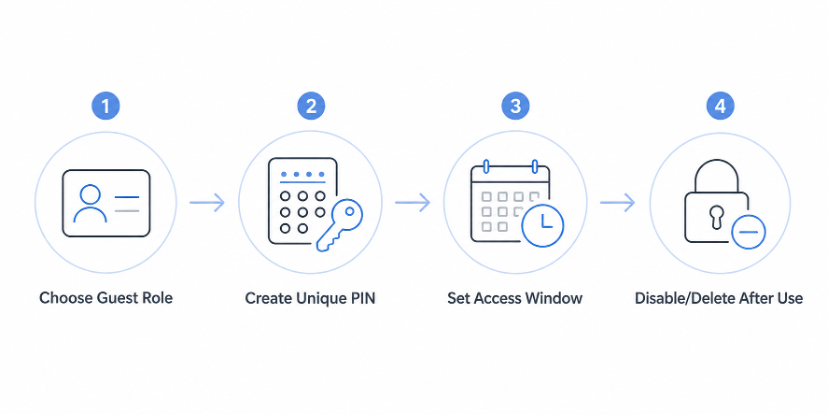
The reliable way to manage smart lock guest access is as a lifecycle: identify the person, create a separate credential, set the permitted window, and close that access when the visit ends. Keep a record of what changed. The exact labels and controls depend on the lock, app version, and firmware, so this guide describes the decisions and checks that travel well between systems.
Choose a Guest Role
The person at the door should have the smallest role that still lets them do the job. A household member who uses the lock every day is not the same as a plumber who needs entry once, and treating both as “users” can leave old permissions behind.
Use the role names your app provides, but map them to a practical purpose:
| Visitor or user | Access question | Record before sending access |
| Household member | Do they need ongoing entry and a recovery method? | Name, credential type, and who can change it |
| Guest or relative | What dates and doors are relevant to the visit? | Arrival and departure plan |
| Service person | Can the job be completed in a narrow time window? | Company or task, contact, and appointment |
| Short-term rental occupant | Which check-in instructions and backup route apply? | Reservation reference and handoff contact |
That record helps prevent a common mistake: leaving old access active because nobody remembers which code belonged to whom.
Check whether the lock distinguishes an owner, family member, guest, or service role. If it does not, use a naming convention such as “John, weekly cleaning” rather than a vague “guest.” Do not infer that a role shown on one model appears on another.
Create a Separate Passcode
Create one unique credential per person or service, and note its purpose in the app or your household log. A separate code is usually easier to revoke than one shared widely over group messages.
Build a Named Credential
The general path looks like this:
- Open the lock’s approved app and select the exact door, not a similarly named device.
- Find the user, passcode, or access-management area.
- Add the visitor with a name that will still make sense a month later.
- Create a passcode that is not the address, a repeated sequence, or the household’s fallback PIN.
- Save the purpose and intended end of access, then send only the information the visitor needs.
Test Before Handoff
Before the person leaves, test the code while another authorized entry route remains available. A code that looks saved may still be mistyped, assigned to the wrong door, or unavailable while the lock is offline. The goal is to confirm the credential works.
Capacity is another reason to keep the list tidy. eufy lists Video Smart Lock S330, with up to 100 users using different passcodes and up to 50 fingerprints.
Add an Access Schedule
Scheduling sets when a credential works, but it does not guarantee what happens after the window ends. Enforcement varies by model, offline status, and user type, so always confirm behavior in your exact app and keep end-of-visit steps on your checklist.
On a model that supports schedules, select the visitor’s credential and look for an access schedule, validity period, or recurring time option. Enter the local dates and times, check the time zone shown by the app, and save. For a weekly cleaner, a recurring Tuesday window may fit; for a repair visit, a single appointment window may be enough.
It’s important to keep these four terms distinct:
| Term | What it means in a workflow | What it does not prove |
| Schedule | A rule describing permitted dates or times | That the code will be removed afterward |
| Disable | A reversible switch that stops a credential from working | That the user profile or history is erased |
| Delete | Removal of a user or credential record | That copied notes or a memorized code disappear |
| Automatic expiration | A system action that ends access at a defined time | That every smart lock offers it |
A scheduled access window does not mean the code will automatically expire or delete itself. Confirm that behavior for the exact lock and firmware.
Where scheduling is supported, test the code during the intended window and again outside it, with another authorized entry method available. If the app has no scheduling controls, record the start and end times and disable the code manually after the visit.
Disable or Delete Access and Review History
Departure is the handoff point between access control and record keeping. Make the closeout part of the visit plan instead of relying on memory after the visitor has driven away.
Close the Credential
At the end of a job or stay, identify the credential by name and door. Choose disable for recurring visits where you’ll want to reuse the profile later, like a weekly cleaner. Choose delete for one-time guests or completed tasks where the profile won’t be needed again. If the app uses different wording, follow its confirmation screen and save a note of what you selected.
Review the Record
Then review event history. Look for the expected unlock, the approximate time, and the credential or user label shown by the system. Event history can confirm that an entry occurred, but it is not proof that a visitor stayed inside for a particular length of time. Do not assume a log has a fixed retention period, and do not promise that remote changes take effect instantly when the device or network is unavailable.
Use this closeout sequence:
- Confirm the visitor has left or that the agreed handoff is complete.
- Disable or delete the correct code, checking the door name before saving.
- Lock the door locally and confirm the status in the approved app when available.
- Review the recent event list for the expected access and any unfamiliar attempt.
- Update the household log with the action, date, and person who made the change.
To revoke a smart lock code shared too widely, disable it and issue a new one rather than tracking every copy. A revoked credential stops future use where the lock receives the change; It can’t erase a number someone has already written down. For a lost phone or compromised account, follow the manufacturer’s recovery steps and review every authorized user, not just the visitor profile.
For connected home devices, the Federal Trade Commission advises unique passwords, multifactor authentication when offered, and current software. [Source: Federal Trade Commission, How To Secure Your Home Security Cameras]
A Video Smart Lock Guest-Access Scenario
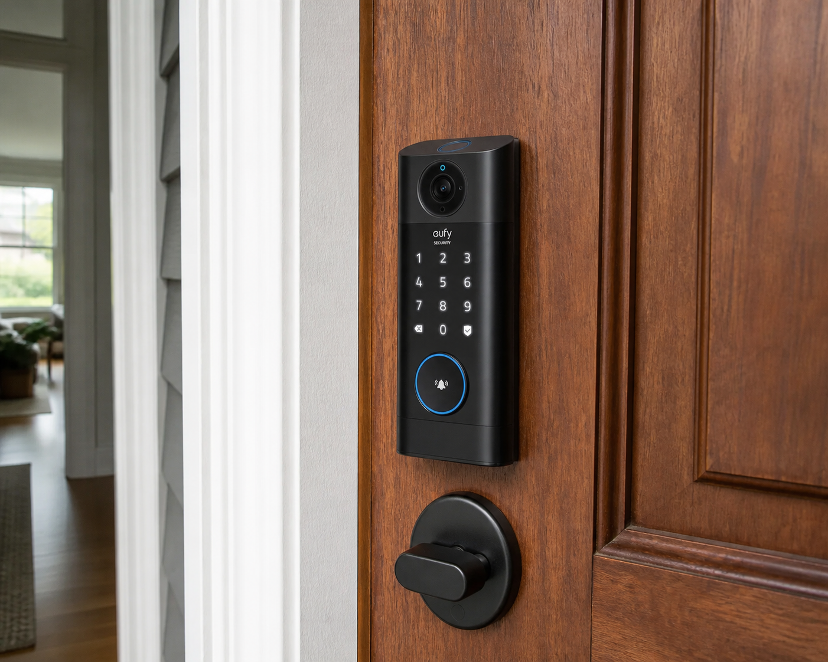
The Video Smart Lock S330 is a strong example for this kind of guest access workflow. It supports app-based access management, visitor controls, push notifications, up to 100 unique passcodes, and up to 50 stored fingerprints. These features make it easy to build a clear guest permission routine, but they do not guarantee a specific schedule interface, one-tap disable, or automatic code expiration across every firmware version.
For a guest-access workflow using S330, confirm the controls shown by the current app and firmware before promising a visitor a time window. Create the user or code, record the intended dates, and test the credential at the door. At departure, use the available disable or delete control, then check event history. If the setup does not show a schedule or automatic-expiration control, use a manual reminder and describe the result as scheduled or manually disabled access.
Conclusion
Good guest access is less about finding a magic code type and more about closing the loop. Give each visitor a named credential, attach a schedule only when the exact lock supports it, and keep disable or delete as an explicit departure step. Review event history for context, while staying realistic about offline devices, copied codes, and log retention.
The result is a repeatable record: who needed the door, when access was meant to work, what was turned off, and what the lock reported afterward. That is a safer working definition of scheduled guest access than assuming every “temporary” code expires on its own. For other door options, browse eufy’s Smart Locks and confirm the exact model instructions before promising a schedule or automatic expiration.